
Appearance
The Appearance section allows you to configure the visual interface of the student dashboard. This setting determines how learners interact with course content and view their progress.
Accessing Appearance Settings
Navigate to Tutor LMS > Settings > Design in your WordPress admin dashboard. Locate the Appearance section to configure your preferred Learning Mode.
Learning Mode Options
Tutor LMS offers three distinct learning modes. Each mode provides a different interface designed for specific user demographics.
| Learning Mode | Target Audience | Description |
|---|---|---|
| Modern | Adult learners & professionals | Clean, optimized dashboard with unified progress tracking, quick access to active courses, and a streamlined layout focused on learning efficiency. |
| Kids | Children & young students | Visually engaging interface featuring bright colors, gamified elements like learning streaks, and playful icons to encourage participation. |
| Legacy | Existing installations | Preserves the Tutor LMS 3.0 dashboard interface for sites requiring visual continuity with previous versions. |
To apply an appearance mode, navigate to Settings > Design > Appearance, select your preferred mode, and save changes. The selected mode applies immediately to the student dashboard.
Note: Modern mode is the default layout for fresh Tutor LMS 4.0 installs. You can toggle between learning modes at any time without running extra configurations or risking your existing course data.
Course
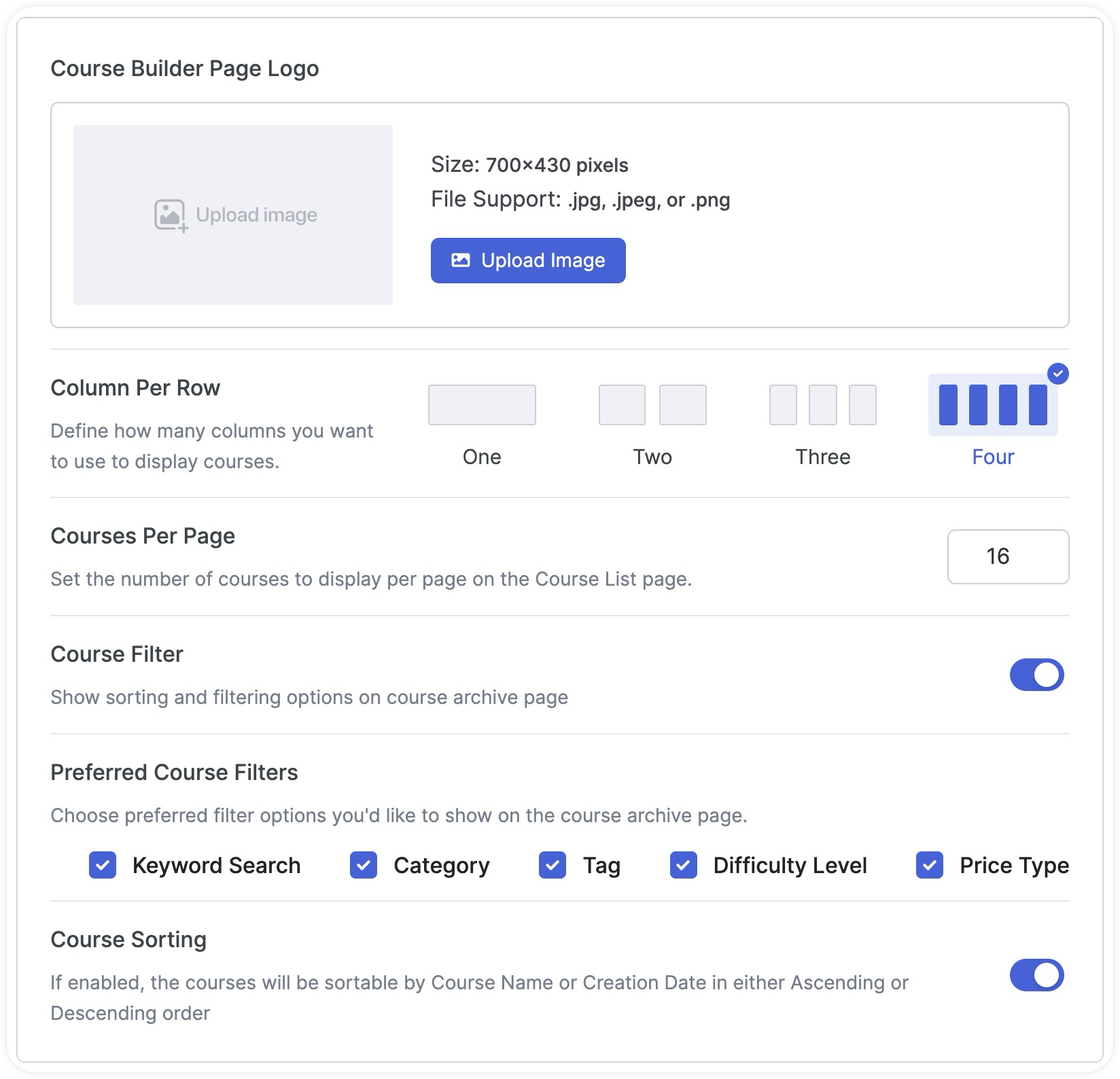
Course Builder Page Logo: Add the logo you want to display on the frontend course builder when instructors create or edit a course.
Column Per Row: Define how many columns you want to use to display courses on the Course Archive Page.
Course Filter: Show sorting and filtering options on the Course Archive Page.
Courses Per Page: Set the number of courses you want to display “per page” for pagination.
Preferred Course Filters: Choose the preferred filter options you’d like to show on the Course Archive Page.
Course Sorting: Enable this option to allow the courses to be sorted by Course Name or Creation Date in either Ascending or Descending order.
Layout
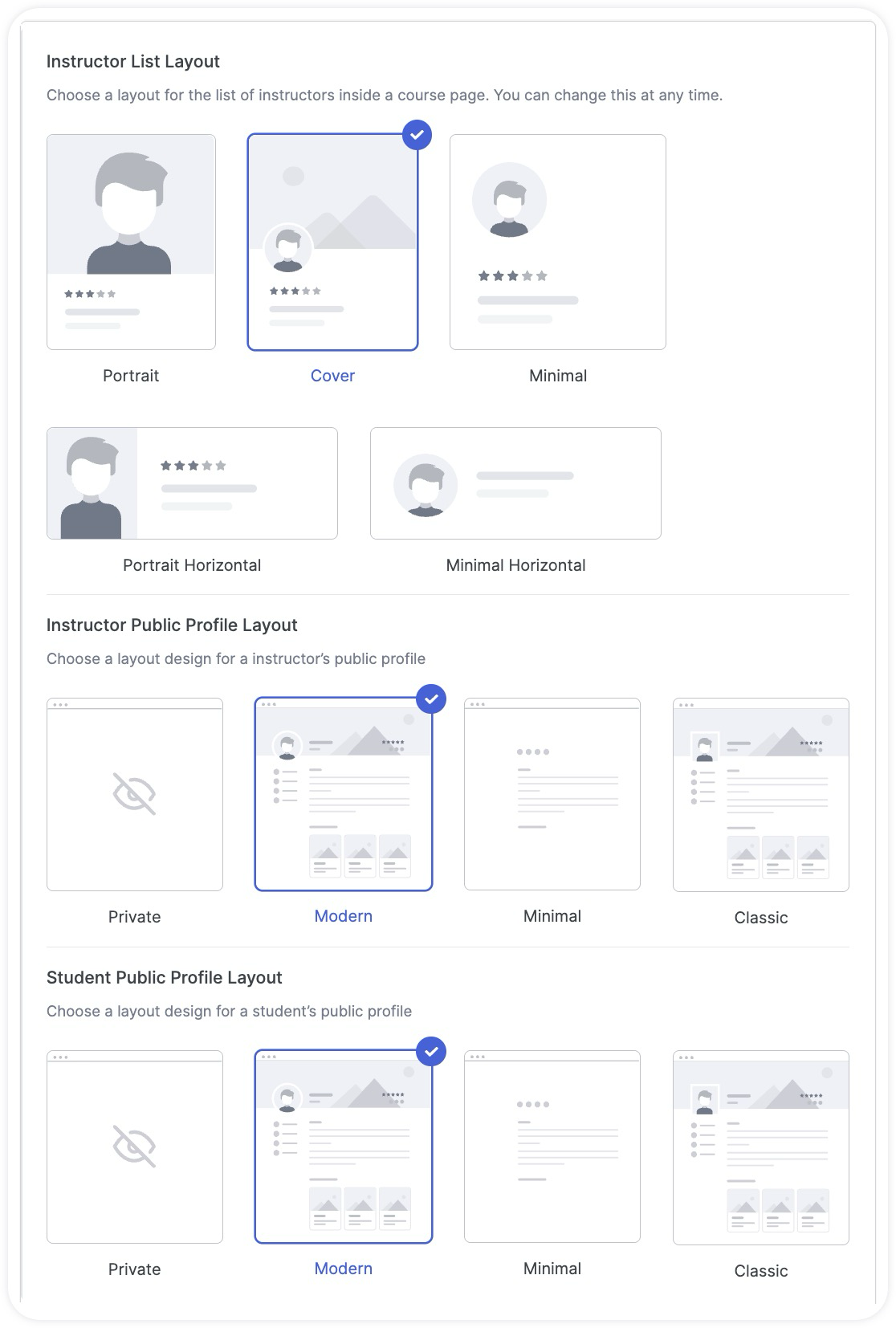
Instructor List Layout: Choose a layout for the list of instructors inside a course page. You can change this at any time. Options include:
- Portrait
- Cover
- Minimal
- Portrait Horizontal
- Minimal Horizontal
Instructor Public Profile Layout: Choose a layout design for an instructor’s public profile. Options include:
- Private
- Modern
- Minimal
- Classic
Student Public Profile Layout: Choose a layout design for a student’s public profile. Options include:
- Private
- Modern
- Minimal
- Classic
Course Details
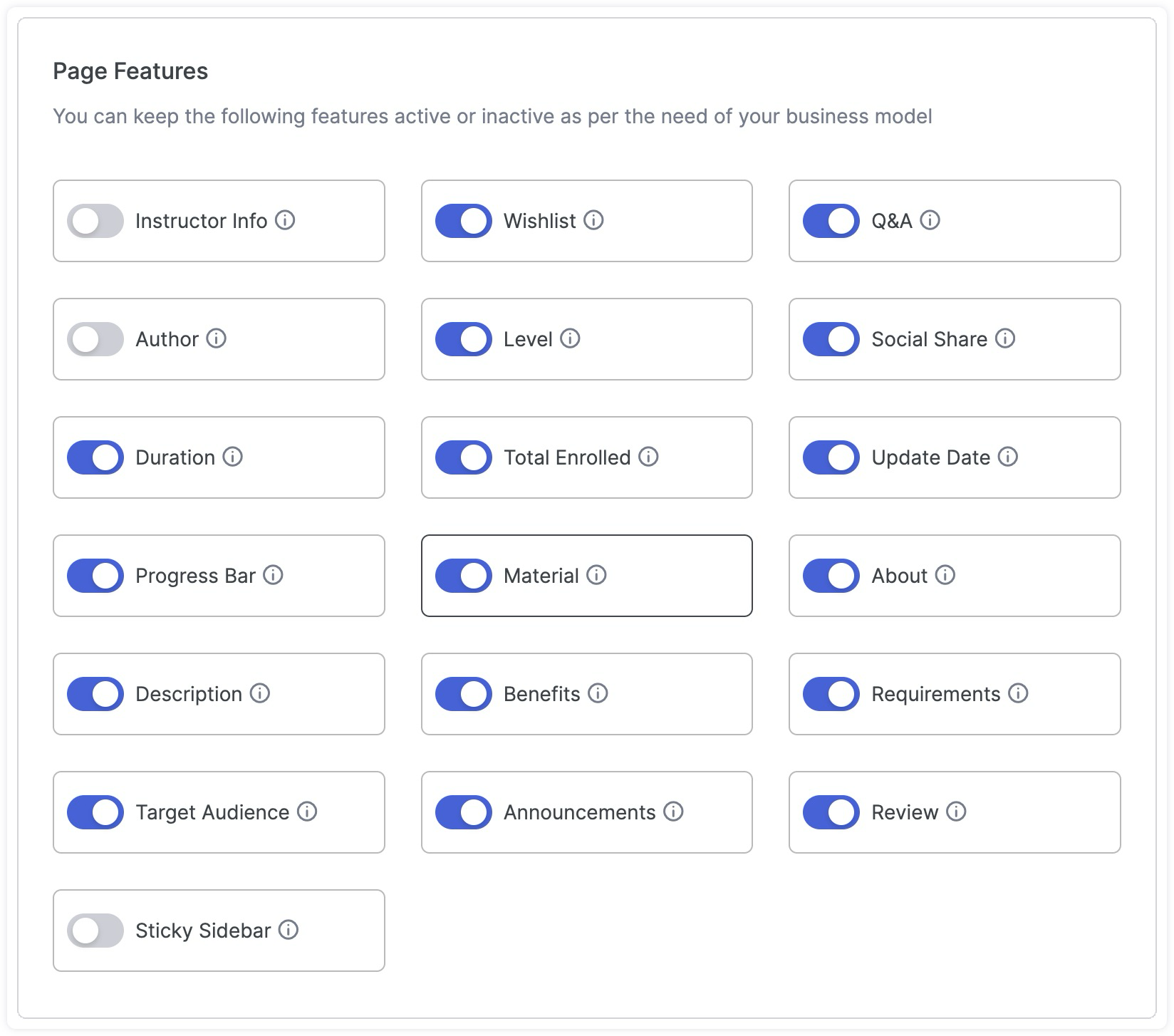
Enable/Disable these options to have them show/conceal them on the frontend Course Details Page for your instructors. Only the admin can change these toggles.
Instructor Info: Enable to show Instructor Info
Q&A: Enable to add a Q&A section
Author: Enable to show Course Author name
Level: Enable to show Course Level
Social Share: Enable to allow Course Social Share
Course Duration: Enable to show Course Duration
Total Enrolled: Enable to show Total Enrolled Students
Update Date: Enable to show the last date the course was updated.
Progress Bar: Enable to show the Course Progress of students
Material: Enable to show Course Materials
About: Enable to show the Course’s About section
Description: Enable to show Course Description
Benefits: Enable to show Course Benefits
Requirements: Enable to show Course Requirements
Target Audience: Enable to show the Course’s Target Audience
Announcements: Enable to show Course Announcements
Review: Enable to show Course Reviews
Sticky Sidebar: Enable to keep the sidebar fixed as users scroll through long pages. Learn how to keep the sidebar sticky by following this Sticky Sidebar Tutorial.
Position of the Enrollment Box in Mobile View: Define where you want the Enrollment Box to be positioned on your Course Details Page by selecting an option from here. Options include:
- On Page Top
- On Page Bottom
Showcase Certificate
Tutor LMS allows course creators to showcase certificates on course details pages, providing certificate previews to prospective students.
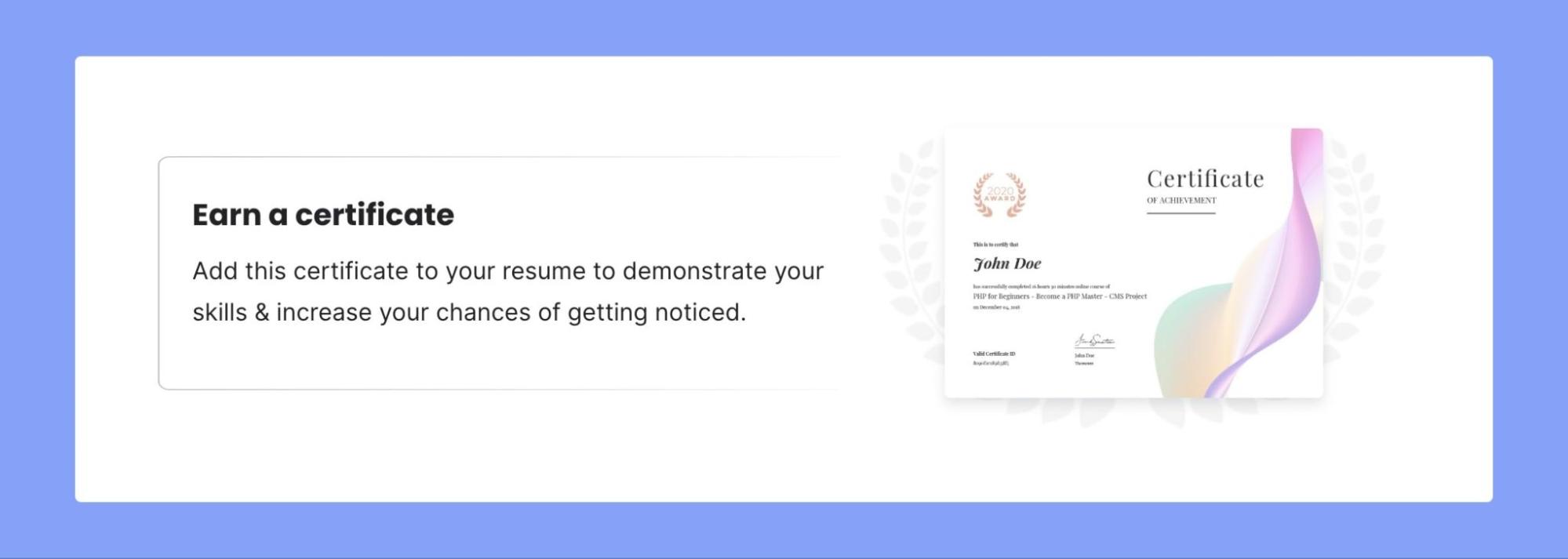
The “Showcase Certificate” option is located under Tutor LMS > Settings > Design section. Enabling this toggle displays a certificate showcase on course details pages.
When enabled, course creators can now customize the section with the following:
- Title: A Title for the showcase section
- Description: A personalized message for the showcase section
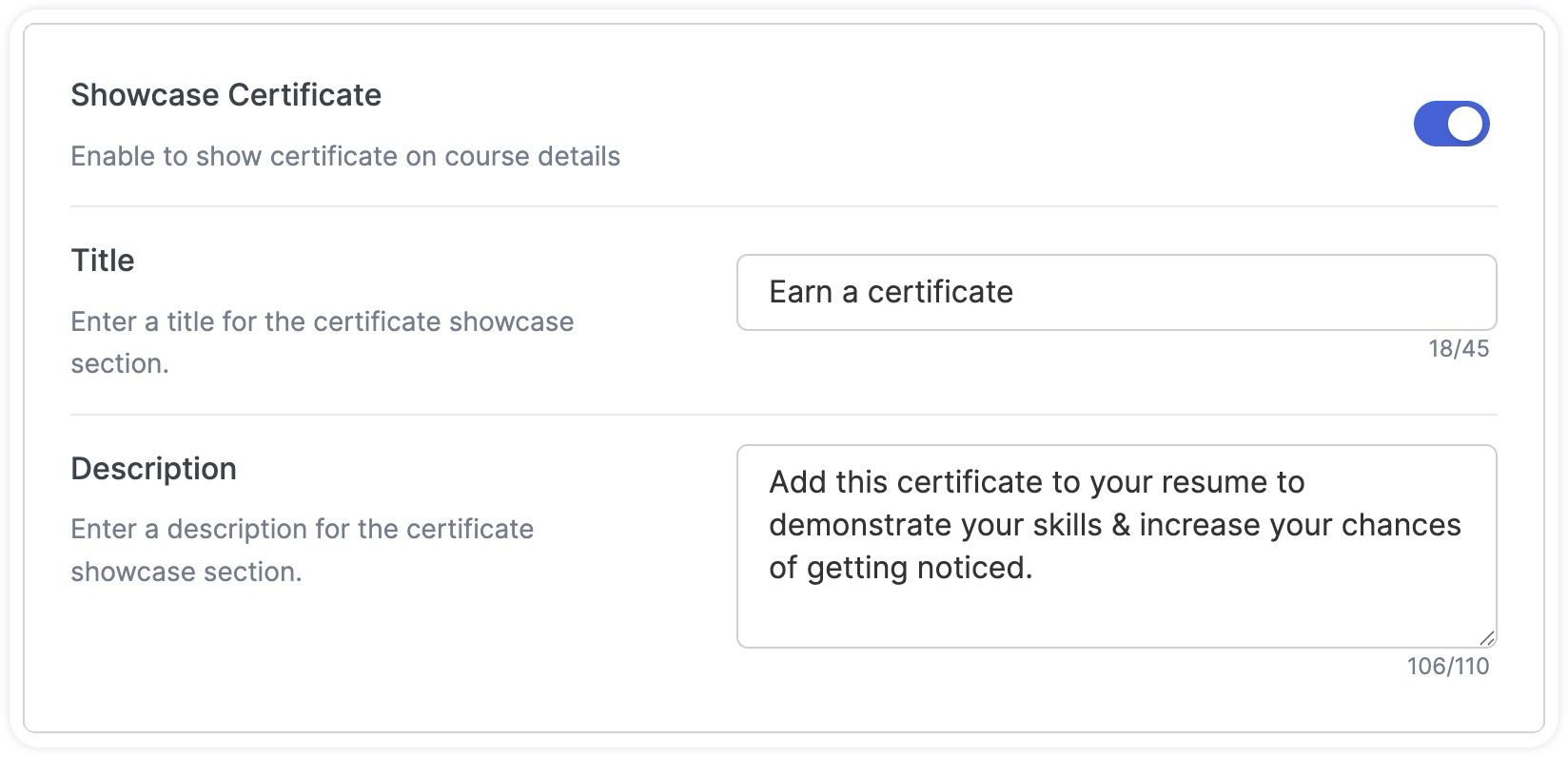
The certificate showcase section is displayed on the Course Details page responsively across all themes and devices. Here’s the preview of this section on the course page:
Colors
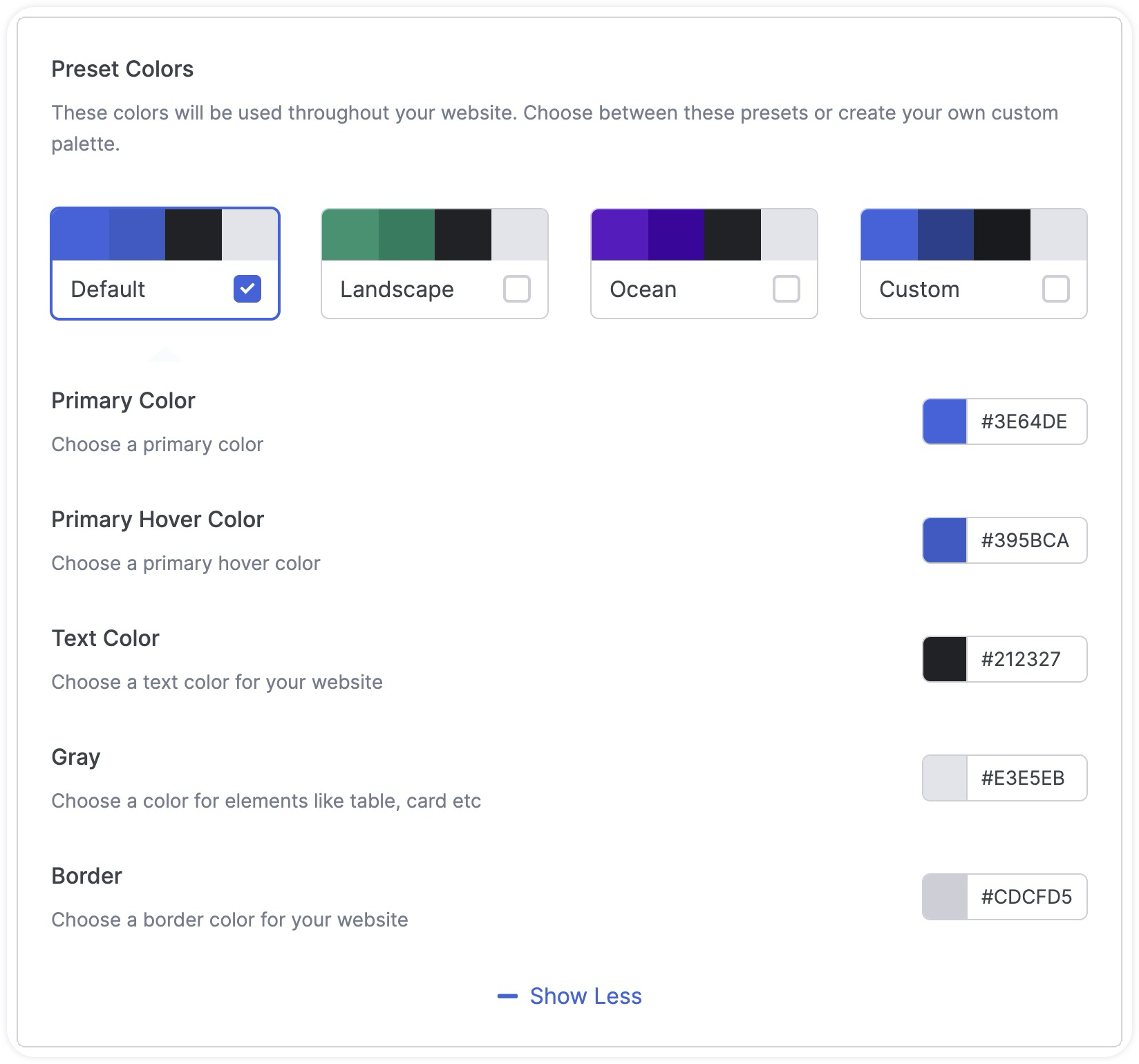
Primary Color: Choose a custom primary color
Primary Hover Color: Choose a custom primary hover color
Text Color: Choose a custom text Color for your website
Grey: Choose a color for elements like table, card, etc
Border: Choose a custom border color for your website